

Sending Medicare Secondary Claims With Validator 6
Validator 6 was originally designed to create and transmit primary electronic insurance claims to carriers that accept HIPAA-compliant claim files.
However, some practices also need to submit secondary claims electronically, particularly to Medicare.
The challenge is that the practice management systems supported by Validator do not natively contain all of the Coordination of Benefits information required for a secondary claim.
Validator 6 addresses this limitation by using Lytec custom fields to capture the additional information Medicare requires.
This guide explains how to configure Lytec and Validator 6 for electronic Medicare secondary claims using the 5010 format.
Why Additional Setup Is Required
Secondary claims require more information than a standard primary claim.
In particular, Medicare needs Coordination of Benefits information describing what happened when the primary payer adjudicated the claim, including:
- What the primary payer allowed
- What the primary payer paid
- What was adjusted
- What remains the patient’s responsibility
- When the primary claim was adjudicated
Lytec does not provide dedicated fields for all of this information.
To make electronic secondary submission possible, Validator 6 uses custom fields within Lytec to capture the missing data and place it into the electronic claim.


What You Will Need
Before configuring Medicare secondary claims, confirm that you have the required software and form files.
Validator 6.0.5.0 or Newer
You must be running:
Validator 6 version 6.0.5.0 or greater
If necessary, update Validator using the software’s automatic updater or obtain the appropriate update from PSS.
A Compatible 5010 Form File
The original supported form file for Lytec 2011 is:
_Eclaims 5010 for Lytec 2011_r4.lns
Revision 4 or a newer revision may be used.
The revision number appears after r or rev in the form-file name.
For example:
r4 = Revision 4
If the appropriate form does not appear when you go to:
Billing → Print Insurance Claims
open Validator 6 and navigate to:
Settings → Carrier Setup Options → Form Files
Locate the appropriate form and select:
Refresh Form Files
Lytec 2011 or Newer Compatible Configuration
This workflow requires the custom fields available in Lytec 2011.
Older versions, including Lytec 2010 and earlier, do not contain the Billing Detail custom fields necessary to provide Coordination of Benefits information at the individual procedure level.
The original Validator 6 configuration was therefore designed around Lytec 2011 and its 5010-compatible fields.
You should also have the latest applicable service pack installed for your version of Lytec.
Information Required for a Medicare Secondary Claim
The additional Coordination of Benefits information is divided into three levels.
Patient-Level Information
You will need:
Medicare Secondary Payer Type
Claim-Level COB Information
The following information is required for the overall claim:
- Coordination of Benefits Payer Paid Amount
- Coordination of Benefits Allowed Amount
- Claim Adjudication Date
Service-Line COB Information
Additional information must also be supplied for each individual procedure line:
- Primary Payer Line Item Approved / Allowed Amount — AMT02
- Primary Payer Line Item Paid Amount — SVD02
- Primary Payer Line Item Adjustment Amount — CAS03
- Line Item Expected Amount
The Line Item Expected Amount will usually represent the patient responsibility portion.
Because this information is required at the individual service-line level, the workflow depends on Lytec’s Billing Detail custom fields.

Step 1: Configure the Lytec Custom Fields
Open Lytec and navigate to:
Settings → Custom Fields
Three groups of custom fields must be configured.
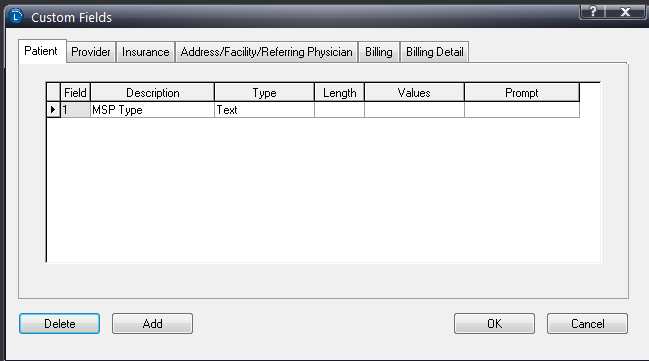
Patient Custom Fields
Select the Patient tab.
Configure the required patient-level custom field used for the Medicare Secondary Payer Type.
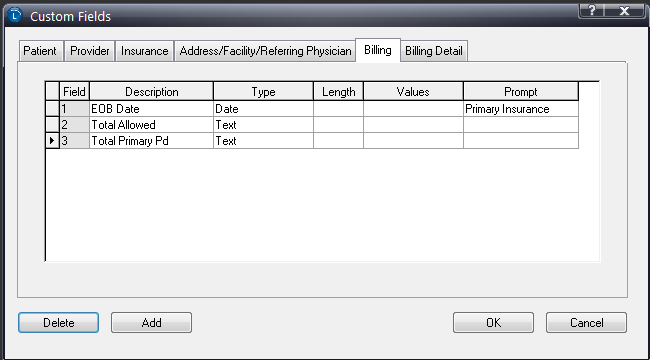
Billing Custom Fields
Select the Billing tab.
Configure the claim-level Coordination of Benefits fields.
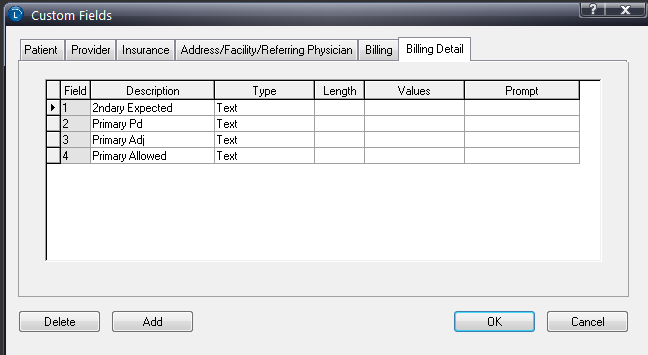
Billing Detail Custom Fields
Select the Billing Detail tab.
Configure the service-line Coordination of Benefits fields used to store payer payment, adjustment, allowed, and expected amounts for each procedure.
Step 2: Enter the Claim-Level COB Information
Before transmitting the secondary Medicare claim, open the appropriate billing in Lytec.
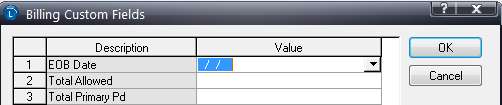
From the Charges and Payments screen, select:
Billing → Custom Fields
Enter the following information in this order:
- EOB Date
- Total Claim Allowed Amount
- Total Claim Adjusted Amount
These values describe the primary payer’s adjudication of the claim as a whole.
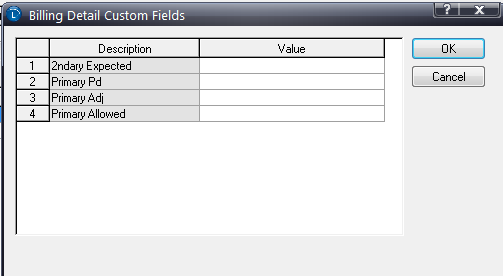
Step 3: Enter the Service-Line COB Information
You must also enter Coordination of Benefits information for each individual charge or procedure.
Select a billing detail line and navigate to:
Detail → Custom Fields
Enter the following information in this order:
- Amount You Expect Medicare to Pay for This Procedure
Usually the patient-responsibility portion. - Primary Insurance Paid Amount for This Procedure
- Primary Insurance Adjustment Amount for This Procedure
- Primary Insurance Allowed Amount for This Procedure
Repeat this process for each applicable detail line on the claim.
Important Data-Entry Rules
There are several important rules to remember when completing these custom fields.
Adjudication Date
The Line Item Date of Adjudication is taken from the claim’s Claim Adjudication Date.
Adjustment Information
If the applicable Billing Detail adjustment custom field is not populated, Validator will not pull the related adjustment information from the subsequent custom fields.
Make sure the adjustment fields are completed whenever adjustment information needs to be transmitted.
Date Fields
All custom fields containing dates must be configured in Lytec as:
Date fields
Amount Fields
Enter monetary amounts using the smallest number of characters necessary.
Examples:
$50.00 → 50
$50.50 → 50.5
$50.23 → 50.23
Do not add unnecessary zeros or currency symbols.

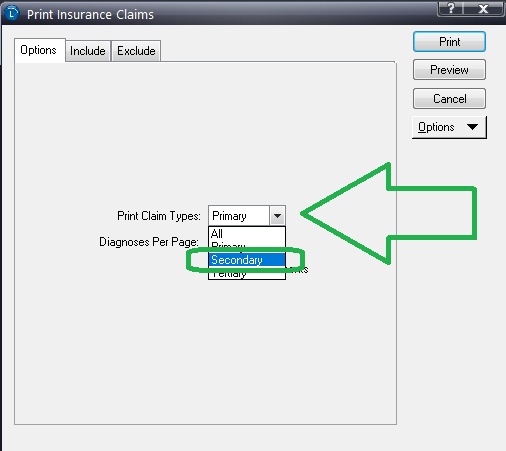
Step 4: Print the Claim as Secondary
After all patient, claim, and service-line Coordination of Benefits information has been entered, you are ready to create the electronic claim.
When printing the claims, make sure the claim type is set to:
Secondary
Validator can then use the information stored in the Lytec custom fields to build the additional Coordination of Benefits information required for the Medicare secondary claim.
Before You Submit
Before transmitting the claim, verify that:
- The correct Medicare Secondary Payer Type has been entered
- The EOB / adjudication date is present
- Claim-level allowed and adjustment amounts are complete
- Every applicable service line contains its COB information
- Date custom fields are configured as Date fields
- Monetary values are entered using the required format
- The claim is being generated as Secondary
Missing Coordination of Benefits information can prevent Medicare from properly processing the secondary claim.

Need Help Configuring Medicare Secondary Claims?
If you are unsure how your Lytec custom fields or Validator form files should be configured, PSS can review the setup with you remotely.